
An audit at MrCloudSec said nobody should hold admin rights all day, so we wanted tighter control. I changed Adam's password reset role so that he only has it when he needs it, I approve each request, and the access expires on its own. In this lab I converted Adam's permanent role into an eligible one with Privileged Identity Management (PIM) and tested the full cycle.
It is a test tenant with fictional accounts. Tenant names, emails and other account details are hidden behind black boxes, and the red marks point out what matters in each screenshot.
The big picture
Skill: Privileged access management with Privileged Identity Management (PIM) in Microsoft Entra ID.
What this solves: Admin roles that are always switched on are a standing risk. If the account is compromised, the attacker gets full privileges straight away.
The approach: just-in-time access. The role is eligible rather than active, so the person has to activate it when needed, for a short time, with a reason and an approval.
Solutions used: PIM eligible role assignments, role settings (2-hour maximum, MFA on activation, justification, approval), and the PIM audit history to review what happened.
Starting point
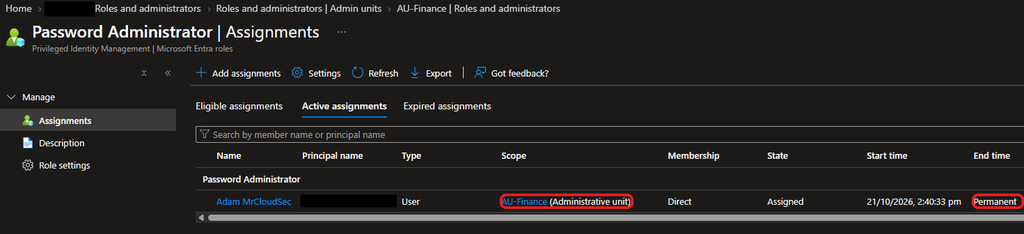
From the previous lab, Adam holds Password Administrator over the AU-Finance administrative unit. As you can see, the assignment is Active with an end time of Permanent. That is the standing access I need to remove.
Setting the rules for the role
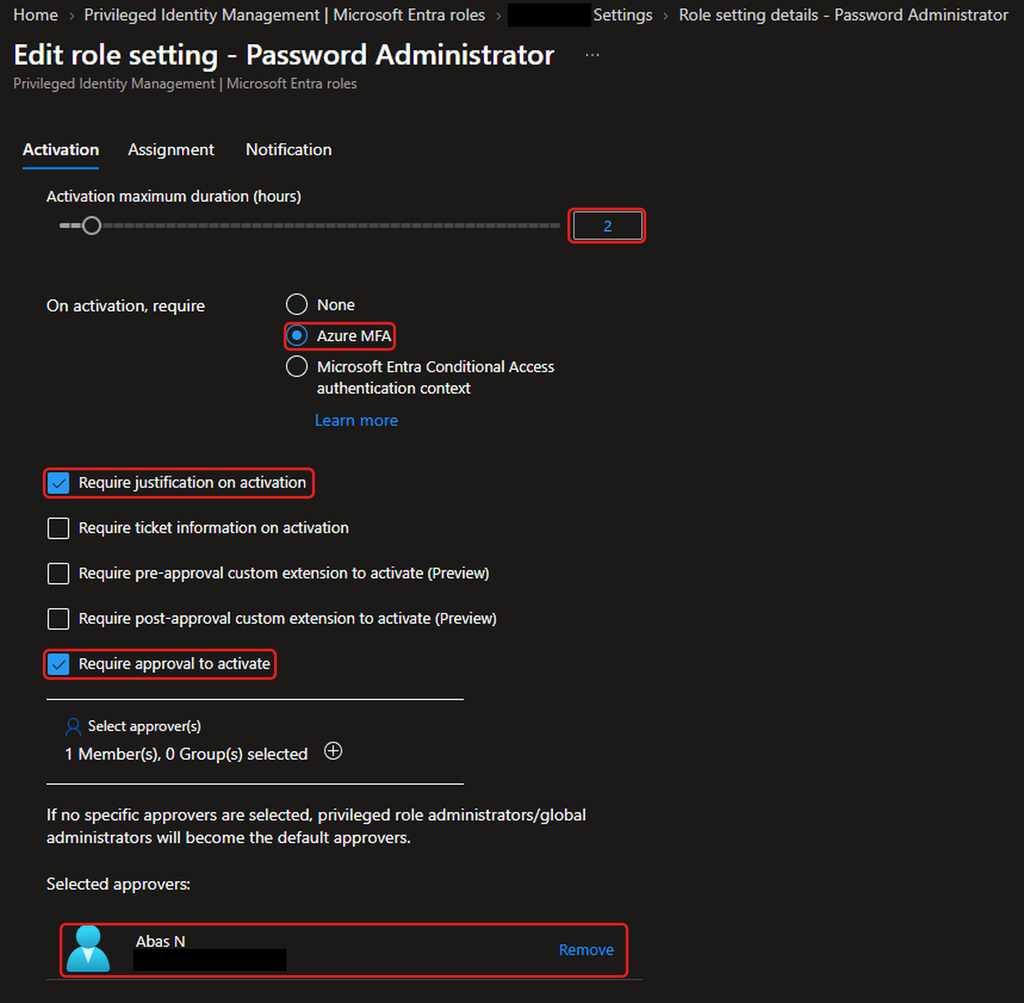
Before changing Adam’s assignment, I set the rules in PIM for the Password Administrator role. I limited activation to 2 hours, required Azure MFA and a justification, and required approval, with myself as the only approver.
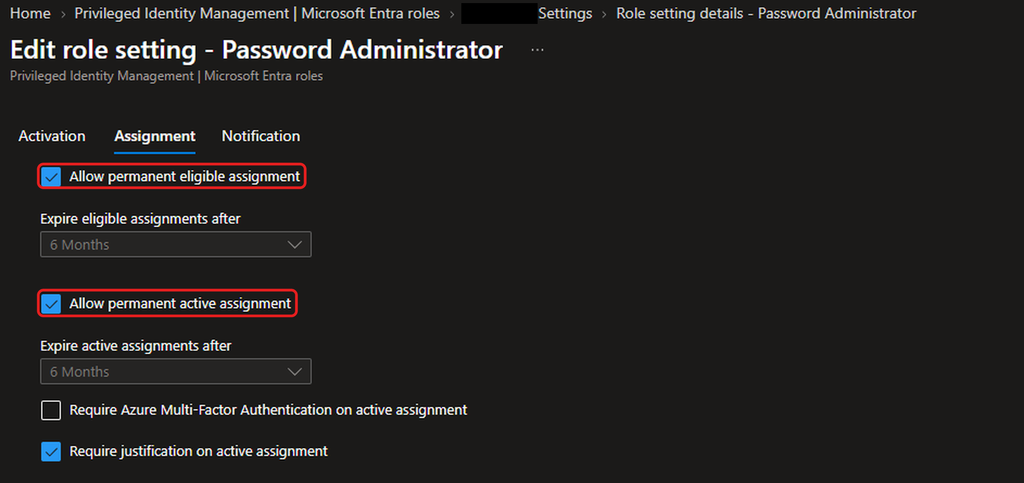
On the Assignment tab, I checked the settings for how long assignments can last.
Making Adam eligible
From inside AU-Finance, I added a new assignment for Adam. The role and scope are fixed to Password Administrator and the administrative unit.
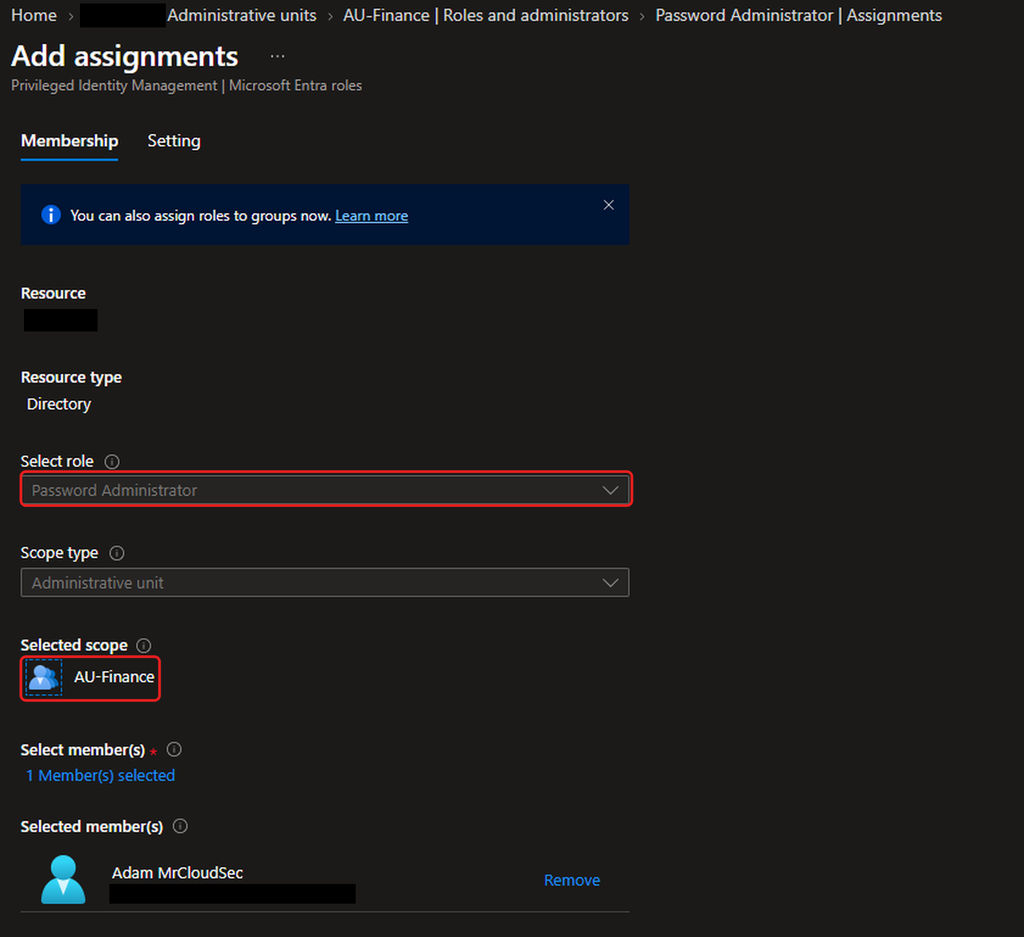
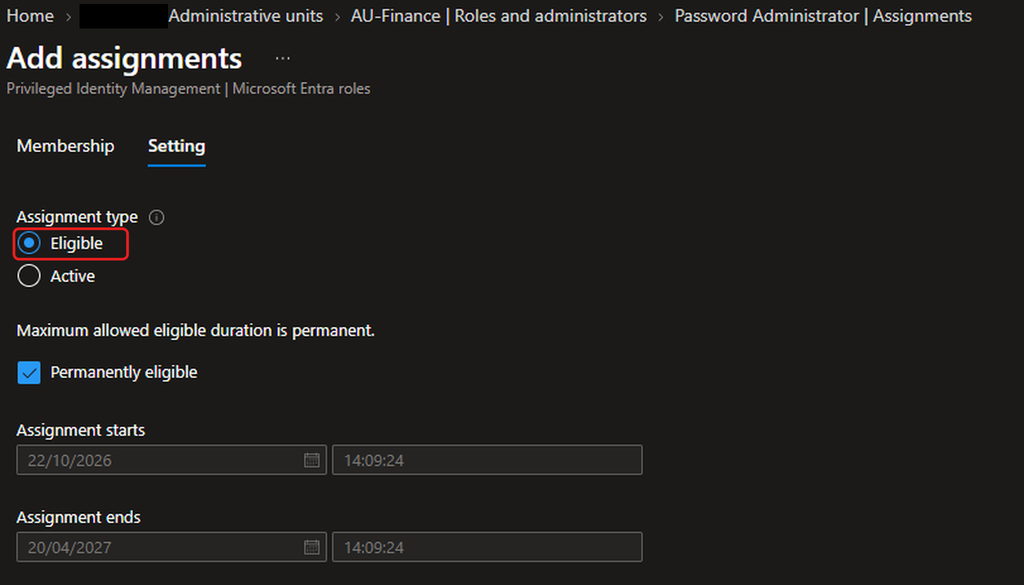
On the Setting tab, I chose Eligible instead of Active.
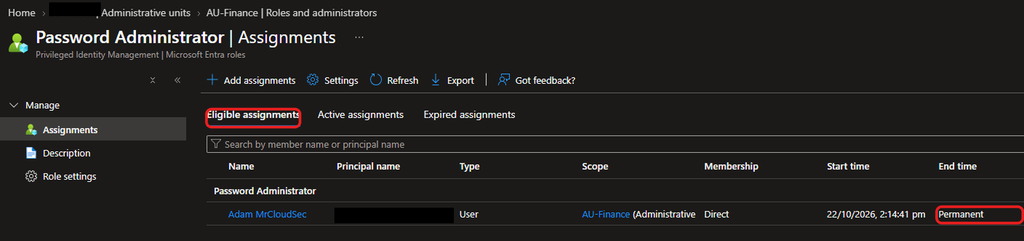
Adam now appears under Eligible assignments.
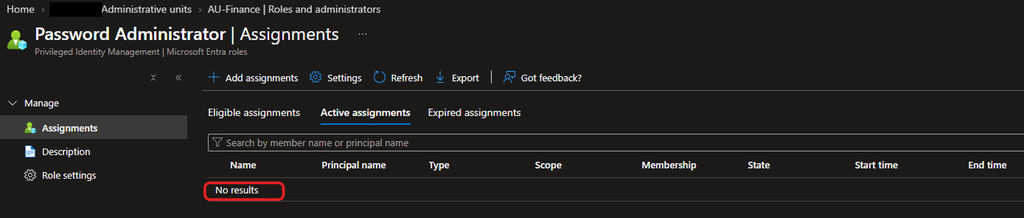
I then removed his old permanent assignment, and the Active tab is empty.
Proving Adam has no standing access
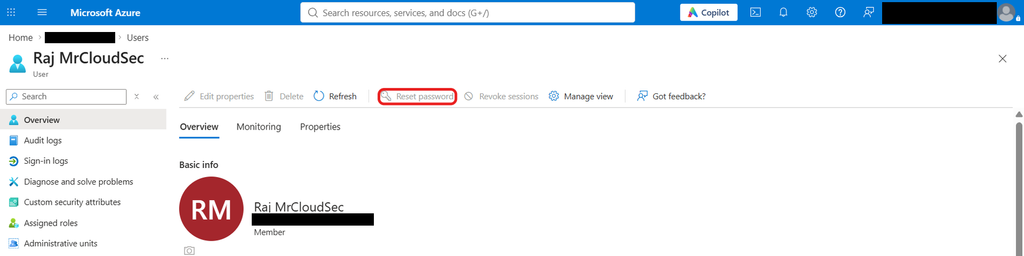
I signed in as Adam in a separate session and opened Raj’s profile. Reset password is greyed out, which confirms he has no admin rights until he activates the role.
Requesting activation
As Adam, I opened My roles in PIM. The role is listed under Eligible assignments with an Activate link.
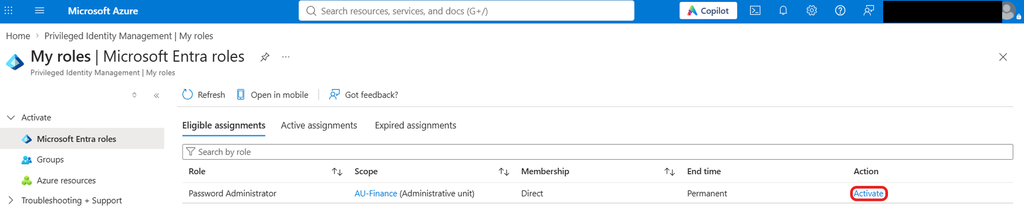
I activated it with the justification INC-20471 reset Raj’s password. The request shows Pending approval.

Approving the request
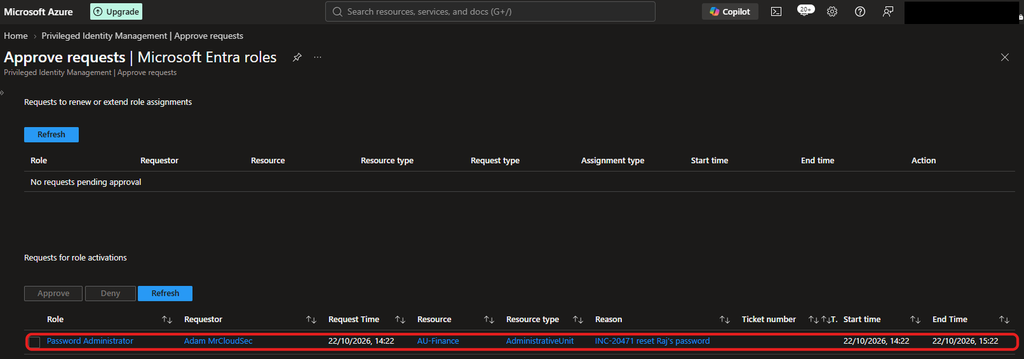
In my own session as the approver, the request appears under Approve requests for role activations, with the justification and a one-hour window.
Using the role
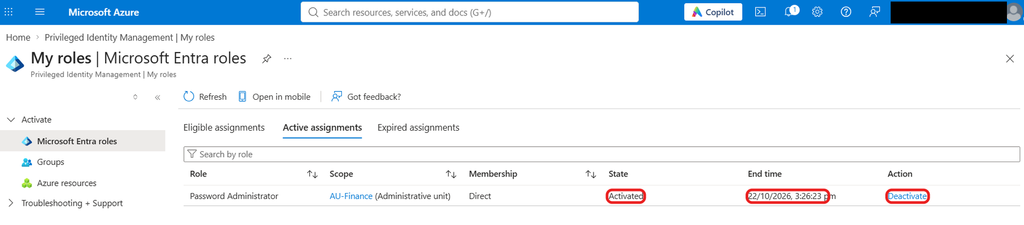
After approval, Adam’s role is Activated with an end time of 3:26 pm, about an hour later, and a Deactivate link.
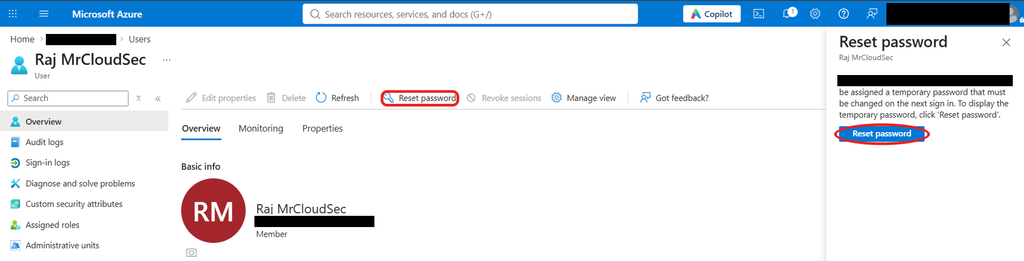
Now the Reset password pane opens for Raj, who is inside the administrative unit.
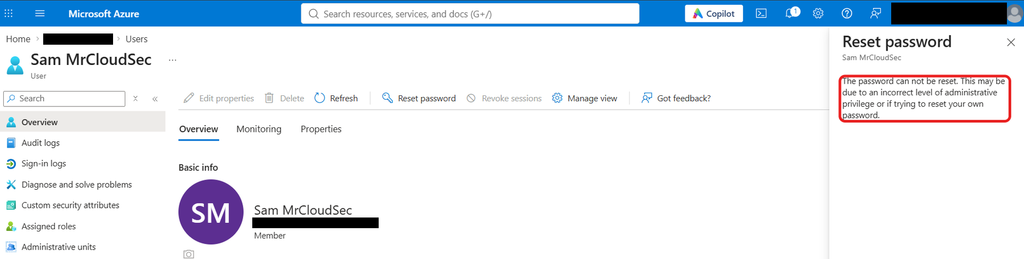
For Sam, who is outside the unit, the reset is still refused. Activating the role did not widen his reach.
Checking the audit trail
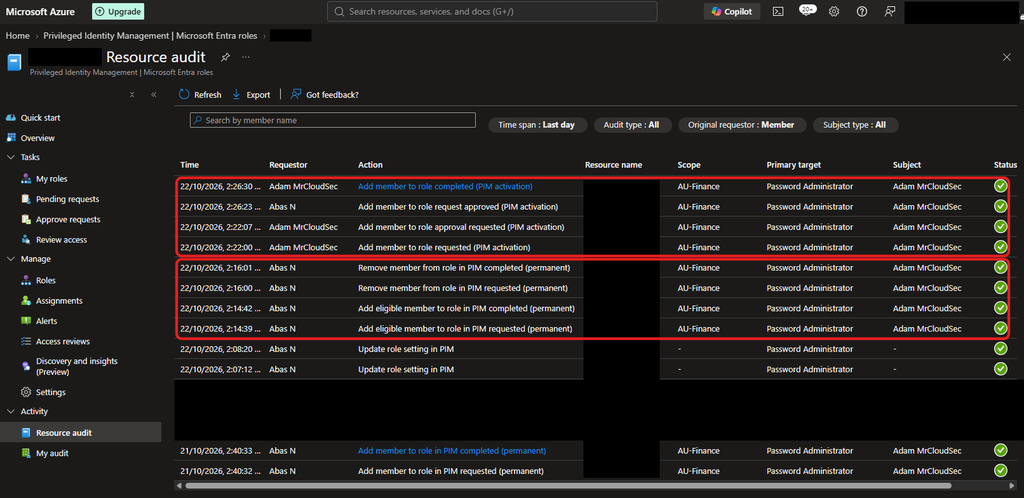
The PIM resource audit shows the whole story in order: the role settings updated, Adam added as eligible, his permanent assignment removed, then his activation requested at 2:22, sent for approval, approved by me at 2:26 and completed.
Findings and recommendations
Eligibility never expires. The role setting Allow permanent eligible assignment is ticked, so the 6-month limit is greyed out and Adam's eligibility shows as Permanent. I recommend unticking it so eligibility expires after 6 months and has to be renewed.
Permanent active assignments are still allowed. I recommend unticking Allow permanent active assignment so nobody can recreate standing access.
No MFA on active assignment. MFA applies when Adam activates the role, but not when an admin creates an active assignment. I recommend enabling it.
Single approver. I am the only approver, so requests stall if I am away. A second approver or an approver group would help.
Expiry not tested yet. I have shown the end time but not the role expiring or being deactivated. I plan to check that next.
Pingback: Scoping Password Resets with Administrative Units -